I moved my WordPress site from managed WordPress hosting to a self-managed Vultr VPS six months ago. This is my honest, detailed Vultr VPS Review for WordPress based on my six-month run. I’ll show actual VPS performance, the real crash, the fix, and everything that happened in between.
Quick Summary (TL;DR)
- Moved my sites from managed WordPress hosting to Vultr VPS (CyberPanel + OpenLiteSpeed) to cut costs and get full server control.
- Average Global TTFB dropped from ~650ms to ~180ms. My site’s overall LCP improved from 3.2s to 1.4s over 6 months.
- A routine
apt upgradecrashed the entire site for 30 minutes. MariaDB ran out of memory on a 1GB VPS with no swap. It takes me 30 minutes to fix it completely. - Vultr provides no live chat support (ticket only) and blocks port 25 by default (you can’t send email directly from the server)
- My total server costs: ~$6/mo vs. $35/mo on managed WordPress hosting. But I’m fully responsible for server security, updates, and crash recovery.
- Verdict: Fast, affordable, and worth every penny. I recommend that you start with at least 2GB of RAM and add swap on day one.
Why I Left Managed WordPress Hosting?
I was on managed WordPress hosting for a few years. I’ve used Kinsta, Cloudways, and Rocket.net for my websites. It worked fine at first.
But as my traffic grew, I kept hitting resource limits. Every traffic spike slowed the site down. Sometimes it crashed completely. The only fix the host offered was to upgrade to a more expensive plan.

Managed hosting prices kept going up. I was paying $30/mo and still had no real control over the actual server. I couldn’t change PHP settings, see what was using server resources, or access logs without opening a support ticket. More importantly, I wanted to see how difficult it was to manage a server and how much money it would save me in the long run.
So I moved to a self-managed VPS. I picked Vultr, installed CyberPanel, and ran OpenLiteSpeed as the web server. Here’s everything that happened over the next 6 months.
Why I picked Vultr + CyberPanel + OpenLiteSpeed?
There are plenty of VPS providers: Hetzner, DigitalOcean, Linode, etc. So, why did I pick Vultr VPS over others?
I read some Reddit posts, and Vultr has the most data center locations of any budget VPS provider. This matters for me, since my website gets visitors from different regions and it can significantly improve overall TTFB.

Hetzner offers the lowest price per spec, but with only 5 data centers worldwide (mostly in Europe). However, DigitalOcean has the richest ecosystem (tutorials, managed databases, Spaces storage) compared to Vultr but costs a bit more for equivalent specs. As for Linode, they offer similar prices and specs, but I like Vultr’s UI better.
For a single WordPress site on a budget, Vultr High Frequency is the best raw performance per dollar outside Europe. Vultr HF also uses the latest NVMe storage with an AMD EPYC processor. Every WordPress page load hits the database. Faster storage means faster queries. My average DB query time dropped from 45ms to 12ms after the move.
| Feature | Vultr | DigitalOcean | Linode | Hetzner |
|---|---|---|---|---|
| Entry price | ~$6/mo | ~$6/mo | ~$5/mo | ~$4/mo |
| NVMe storage | Yes | Yes (most plans) | Yes | Yes |
| One-click WordPress | Yes | Yes | Yes | No |
| CyberPanel support | Yes | Yes | Yes | Yes |
| Data center locations | 32 | 15 | 11 | 5 |
| Support type | Ticket only | Ticket + community | Ticket + phone (paid) | Ticket only |
| Free object storage | No | Yes (Spaces) | No | No |
| Managed database | No | Yes | Yes | No |
| Uptime SLA | 100% | 99.99% | 99.9% | 99.9% |
In Vultr or any other VPS hosting, there are many ways to install and manage a WordPress site. They are not all equivalent; some are bare web servers, some come with a control panel, and some are complete WordPress stacks.
| Method | Web server | Control panel | Difficulty | Performance | Best for |
|---|---|---|---|---|---|
| Vultr One-Click WordPress | Nginx | None | ⭐ Easy | ⭐⭐⭐⭐ | Beginners |
| OpenLiteSpeed + WordPress | OpenLiteSpeed | None | ⭐⭐ | ⭐⭐⭐⭐⭐ | Performance-focused users |
| CyberPanel + WordPress | OpenLiteSpeed | CyberPanel | ⭐⭐ | ⭐⭐⭐⭐⭐ | Easy management + performance |
| CloudPanel + WordPress | Nginx | CloudPanel | ⭐⭐ | ⭐⭐⭐⭐ | Lightweight management |
| HestiaCP + WordPress | Nginx/Apache | HestiaCP | ⭐⭐⭐ | ⭐⭐⭐⭐ | Free hosting panel |
| Plesk + WordPress | Nginx/Apache | Plesk | ⭐⭐ | ⭐⭐⭐⭐ | Multiple sites/businesses |
| cPanel/WHM + WordPress | Apache/Nginx | cPanel/WHM | ⭐⭐ | ⭐⭐⭐⭐ | Traditional hosting |
| WP Squared | cPanel-based | WP Squared | ⭐⭐⭐ | ⭐⭐⭐⭐ | Managing multiple WP sites |
| Manual LEMP | Nginx/Apache | None | ⭐⭐⭐⭐⭐ | ⭐⭐⭐⭐⭐ | Very Advanced users |
| Docker + WordPress | Depends on stack | Docker | ⭐⭐⭐⭐⭐ | ⭐⭐⭐⭐ | Developers/advanced setups |
So, why did I pick OpenLiteSpeed server and CyberPanel to maintain it?

Note: CyberPanel and OpenLiteSpeed aren’t really two competing web servers. CyberPanel is the control panel (like managed WordPress hosting), while OpenLiteSpeed is the web server underneath it. Vultr’s CyberPanel setup automatically installs OpenLiteSpeed, WordPress, LSCache, and other required components.
- OpenLiteSpeed handles more traffic with less RAM than Apache & Nginx. Apache creates a new process for every connection, which eats memory fast. OpenLiteSpeed is event-driven; it handles many connections within the same process. On a small VPS server, this matters a lot.
- OpenLiteSpeed has a built-in WordPress caching plugin (LSCache). It caches pages at the server level, before WordPress or PHP even loads. Most other web servers need extra premium cache plugins or modules to do this.
- CyberPanel is free and built for LiteSpeed. It handles SSL, DNS, domains, and WordPress installs from one dashboard like managed WordPress hosting. No cPanel license needed.
- One thing to know upfront: CyberPanel runs background Python and Gunicorn scripts alongside a monitoring service
(lscpd). At idle, CyberPanel alone uses around 300–400MB of RAM. Add MariaDB, PHP, and WordPress on top, and a 1GB VPS is already close to its limit before any real traffic hits.
⚠️ Important: Vultr instances ship with zero swap space by default. No swap means the Linux OOM killer will immediately kill MariaDB if RAM runs out. Which is exactly what happened to me when I tried to update my server. Add swap on day one. You can check the Vultr official guide, or use ChatGPT/Gemini to do it properly.
⚠️ Security Update: CyberPanel is the easiest entry point for OpenLiteSpeed. But it has suffered from severe security flaws in the past, like the October 2024 ransomware attack that let hackers take total control of servers. Security-conscious users are better off using a secure remote dashboard like RunCloud, or skipping visual dashboards entirely to use command-line tools like WordOps.
Vultr Pricing: What I’m actually paying per month
Unlike some managed WordPress hosting, Vultr’s pricing model is transparent. Here’s what Vultr’s plans look like as of 2026.
I started my sites on the 1GB plan at $6/mo. After the crash (more on this below), I upgraded to the 2GB HF plan at $12/mo.
| Plan | vCPU | RAM | NVMe | Bandwidth | Price/mo |
|---|---|---|---|---|---|
| Cloud Compute (started here) | 1 | 1 GB | 25 GB | 1 TB | ~$6 |
| High Frequency | 1 | 1 GB | 32 GB | 1 TB | ~$8 |
| High Frequency (I’m using this) | 1 | 2 GB | 64 GB | 2 TB | ~$14 |
| High Frequency | 2 | 4 GB | 128 GB | 3 TB | ~$28 |
| Optimized Cloud | 2 | 4 GB | 100 GB | 4 TB | ~$48 |
My recommendation: Start with the 2GB High Frequency plan at $14/mo. CyberPanel alone uses 300–400MB at idle. Add MariaDB and WordPress, and 1GB disappears fast. I learned this the hard way.
Vultr vs. Kinsta: The Real Price Difference
Kinsta is one of the most popular managed WordPress hosting providers. I’ve used Kinsta hosting before, and I moved away from it. Here’s how the two compare honestly.
| Feature | Vultr | Kinsta Starter Plan |
|---|---|---|
| Monthly cost | ~$6/mo | ~$35/mo |
| Sites included | Unlimited (self-managed) | 1 site |
| Visits included | Unmetered | 25,000/mo |
| Storage | 25 GB NVMe | 10 GB SSD |
| PHP/server control | Full (you configure everything) | Limited managed environment |
| Server stack | OpenLiteSpeed + MariaDB + Redis | Nginx + MariaDB |
| Redis Object cache | Free | $100/Month |
| CDN included | No (use Cloudflare free) | Yes (Cloudflare CDN) |
| Staging environment | No (manual) | Yes (one-click) |
| Support | Ticket only, community | 24/7 live chat |
| Automatic backups | No (you set it up) | Yes (daily, included) |
The difference is stark: Kinsta’s Starter plan costs ~$35/mo and supports one site with 25,000 monthly visits. For $6/mo on Vultr, you get more storage, no visit caps, and you can host multiple sites. But Kinsta gives you a fully managed environment – staging, daily backups, and 24/7 live chat, Cloudflare Enterprise CDN, all included.
If your time is worth money, Kinsta’s premium pricing makes sense. If you’re comfortable managing your own VPS server and you don’t need hand-holding, Vultr gives you far more value for far less.
My recommendation: Start with the 2GB High Frequency plan at $14/mo. CyberPanel alone uses 300–400MB at idle. Add MariaDB and WordPress, and 1GB disappears fast. I learned this the hard way.
Start Your Vultr Server with $300 CreditVultr vs Managed WordPress Hosting: 6-Month Performance Data
Before the move, my site felt fine to me. But the real-world performance data told a different story.
On my managed host, the average TTFB was around 650ms (without Cloudflare CDN).
Meaning visitors were waiting over half a second before the browser even started receiving a page. On slower connections or from further away, it was worse. Google’s PageSpeed Insights flagged my LCP at 3.2s, which is in the “needs improvement” range. My INP was 280ms, just outside Google’s recommended threshold of 200ms.
I tracked everything using GTmetrix and Google Search Console over 180 days, both before and after the move. Here’s what changed. All numbers below were tracked using GTmetrix and Google Search Console.
| Metric | Managed Hosting (Before) | Vultr + OpenLiteSpeed (After) | Why It Changed |
|---|---|---|---|
| TTFB | 650ms | 180ms | NVMe storage + OpenLiteSpeed event-driven request handling |
| LCP | 3.2s | 1.4s | Faster TTFB + LSCache serving pages before PHP loads |
| INP | 280ms | 145ms | No competing with other sites on the same host |
| CLS | 0.08 | 0.07 | Barely changed (this is a CSS/theme issue, not server-related) |
| Peak RAM under load | Capped at 512MB | ~1.4GB of 2GB | I own the full resource pool now |
| Avg DB query time | 45ms | 12ms | NVMe speed + Redis object cache |
The biggest single gain was average TTFB: down from 650ms to 180ms. That improvement comes from two things working together: NVMe storage reads the database much faster, and the OpenLiteSpeed server. LiteSpeed Cache plugin serves fully cached HTML pages directly from memory without even touching PHP or WordPress. When a cached page is requested, the server responds in under 50ms, and the database never gets involved.
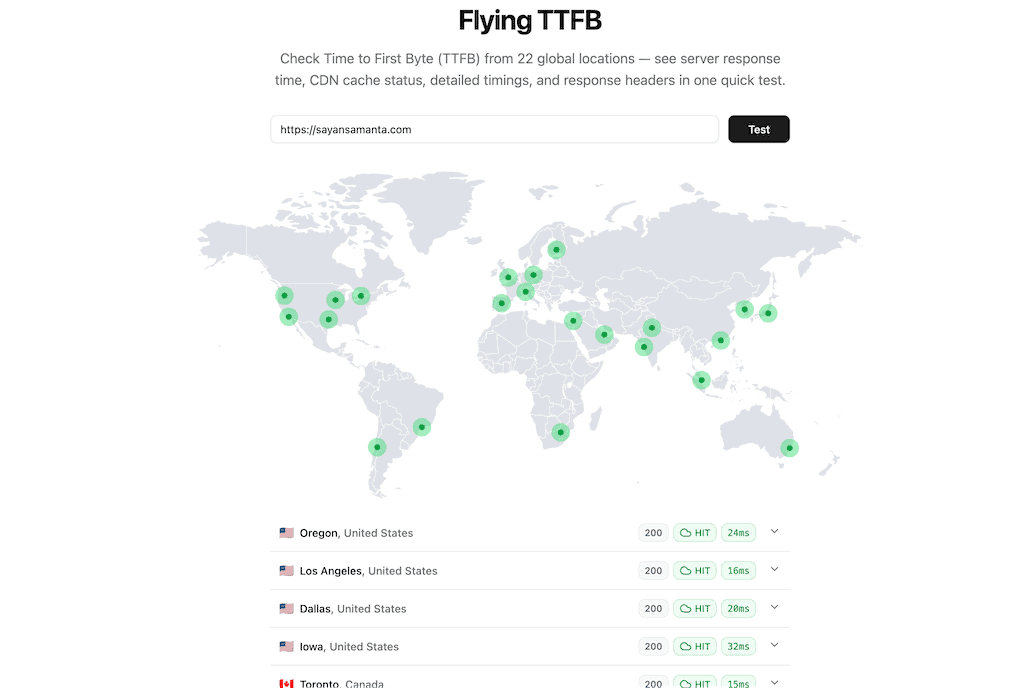
Faster TTFB results in average LCP dropping from 3.2s to 1.4s. The browser starts rendering the page much sooner, so the LCP element on the page loads faster. This also pushed my PageSpeed score from the 85s to consistently above 100 on mobile.

INP improved because on a VPS server. Even on managed hosting, your PHP processes compete with hundreds of other sites on the same server. Under load, that contention slows everything down. On Vultr, my PHP workers have the full CPU to themselves.
As expected, CLS score barely moved. Cumulative Layout Shift (CLS) is a front-end problem caused by fonts loading late, images without dimensions, or dynamic content. The VPS server does not affect it, but if you configure the LsCache Plugin correctly, it’ll fix itself. Don’t expect a VPS to fix your CLS score.
How I Managed My Vultr Server (Security, Backups & Monitoring)
The first thing you need to know is that Vultr doesn’t offer any type of site migration. If you want to move your WordPress site, you need to do it yourself. I prefer to migrate my site using plugins like UpdraftPlus, Duplicator, or Migrate Guru. Here’s what I recommend you do during Vultr VPS server setup.
1: Add swap space immediately (do this before anything else)
Vultr instances come with zero swap by default. This is a critical gap. Without swap, if RAM fills up during any background task. During an update, a cron job, or a traffic spike, the Linux OOM killer will kill MariaDB instantly. Add swap before installing anything:
Verify it’s active: swapon --show

2: Tune PHP settings
In CyberPanel, increase the PHP memory limit to 256MB (or 512MB if on 2GB+ RAM). Then enable OPcache; this helps a lot during high-concurrency moments like flash sales or a post going viral.
3: Tune MariaDB (important on low-RAM VPS)
Out of the box, MariaDB’s settings are not optimized for a small VPS. Edit /etc/mysql/mariadb.conf.d/50-server.cnf and set:
innodb_buffer_pool_size = 256M
On a 1GB VPS, set this to 256M, and on a 2GB VPS, 512M is safe. This tells MariaDB how much RAM to use for caching data. Without setting the buffer pool size, MariaDB can quietly consume most of your available RAM and trigger the OOM killer.
4: Setup external SMTP service (Email warning)
Vultr blocks port 25 by default on all new accounts to prevent email spam. This means your WordPress site cannot send emails directly. So, you’ll not receive password resets, no 2fa code on email, or WooCommerce order confirmations. You must use an external SMTP service like Mailgun, SendGrid, or SMTP2GO. Set this up before going live, or your users won’t receive any email from your site.
How did I secure my Vultr VPS server (Security Hardening)?
A self-managed VPS is your responsibility. No one secures it for you. Here’s what I did with my VPS server for better security.
1. Set up UFW firewall
ufw allow 22      # SSH
ufw allow 80      # HTTP
ufw allow 443     # HTTPS
ufw allow 8090    # CyberPanel
ufw enable
2. Disable SSH password login (use SSH keys instead)
In /etc/ssh/sshd_config, set:
PasswordAuthentication no
PubkeyAuthentication yes
3. Install Fail2Ban to block brute-force attacks
apt install fail2ban -y
systemctl enable fail2ban
4. Whitelist Cloudflare IPs in UFW
If you’re using Cloudflare in proxy mode, your server only receives connections from Cloudflare’s IPs, not from real visitor IPs. If UFW blocks those IPs, your site will go down, and Cloudflare shows a 521 error. Whitelist Cloudflare’s full IP list.
5. Set up auto-restart for MariaDB (Add a systemd override so MariaDB restarts automatically if it crashes)
mkdir -p /etc/systemd/system/mariadb.service.d/
echo -e "[Service]\nRestart=on-failure\nRestartSec=5s" \
  > /etc/systemd/system/mariadb.service.d/restart.conf
systemctl daemon-reload
6. Keep everything updated
CyberPanel has a one-click updater in the dashboard. Use it to update WordPress core, themes, and plugins weekly. An outdated WordPress site is most of the time hacked.
How do I keep backups of my site & server?
The crash taught me backups are not optional. Here is the three-layer system I now run.
Layer 1: Vultr Snapshot (full server backup). Before every major update, I take a snapshot from the Vultr dashboard. Restoring takes about 5 minutes and rolls back the entire server. Vultr snapshots cost about $0.05/GB/month.
Layer 2: CyberPanel Backup (files + database). CyberPanel has a built-in backup tool (under Websites → Backup). I run it weekly and download a copy to my laptop.
Layer 3: UpdraftPlus (WordPress-level, offsite). UpdraftPlus runs daily database backups and weekly full site backups, sent automatically to Google Drive. Even if the server is completely destroyed, the WordPress content is safe and secure on your Google Drive. UpdraftPlus free tier handles everything; there’s no need to spend money on it.
| Backup Type | Frequency | Stored Where |
|---|---|---|
| Vultr snapshot | Before every update | Vultr snapshot storage |
| CyberPanel full backup | Weekly | Server + local download |
| UpdraftPlus DB backup | Daily | Google Drive |
| UpdraftPlus full backup | Weekly | Google Drive |
How do I monitor my site & server uptime?
After the crash, I set up server monitoring. It took 20 minutes and costs nothing.
1: UptimeRobot (free): Sign up at uptimerobot.com → Add Monitor → HTTP(s) → enter your URL. If any monitor goes down, I get an email within 5 minutes. I run 3 monitors:
- Main site URL
- CyberPanel panel URL (port 8090)
- A keyword monitor that alerts if a database error message appears on any page
2: Vultr’s built-in monitoring: Basic CPU and bandwidth graphs are available in the Vultr dashboard under your instance. Not real-time monitoring, but useful for spotting downtime patterns over 24 hours or 7 days.
Commands I run after every server update:
watch -n 5 free -h               # Watch RAM every 5 seconds
systemctl status mariadb lscpd   # Check MariaDB service health
journalctl -u mariadb -n 20      # Last 20 MariaDB log lines
My WordPress Plugin Stack for Performance & Security
Using the right plugins alongside OpenLiteSpeed matters. The wrong ones undo the VPS server-level gains.
| Purpose | Plugin | Notes |
|---|---|---|
| Caching | LiteSpeed Cache (Free) | Works directly with OpenLiteSpeed at the server layer |
| Security | Wordfence (Free) | Firewall + malware scanner |
| Backup | UpdraftPlus (Free) | Auto-sends to Google Drive or S3 |
| Object cache | Redis Object Cache | Connects to server-level Redis |
| Performance | Perfmatters | Disables unused scripts per page |
| CDN | Cloudflare (Free) | CDN+ Firewall + DNS |
| DB cleanup | WP-Optimize | Scheduled database optimization |
| SMTP email | WP Mail SMTP | Required — Vultr blocks port 25 by default |
| Uptime | UptimeRobot (external) | Free 5-min checks with email alerts |
Important: Do not install WP Super Cache or W3 Total Cache alongside the LiteSpeed Cache plugin. They conflict. LSCache handles everything: full-page caching, object caching, image optimization, and CDN. Just install it, configure it, and leave the other caching plugins uninstalled.
If you want to use the premium cache plugin, use FlyingPress instead of the WP Rocket cache plugin. It supports everything like LiteSpeed Cache and does things better than the Perfmatters plugin.
The Crash: What Went Wrong & The 30-Minute Fix
This is the part most Vultr VPS reviews skip. Server crash due to a mistake I made during setup. Six months in, I ran a standard apt upgrade. It’s something you’re supposed to do regularly for security patches, updates, fixing bugs, and memory leaks.
When I ran apt upgrade on the terminal, my site went offline immediately. Cloudflare showed a 521 “Web Server Down” error. CyberPanel returned an HTTP 500 error. Everything was offline. And I don’t know what went wrong, and Vultr doesn’t provide live chat support to fix it. After digging around and checking systemd logs, I realized MariaDB ran out of memory during the upgrade.

What Actually Happened
The root cause was simple but painful: my 1GB VPS had no swap and ran out of memory during the upgrade, so it never cleanly restarted. CyberPanel (and therefore the web server) was effectively offline, triggering Cloudflare’s 521 error.
Here’s the complete chain of events:
apt upgraderan and needed memory to process packages.- MariaDB was already consuming most of the available 1GB of RAM.
- Because there was no swap space, Linux had nowhere to offload memory.
- Insufficient memory led MariaDB to stall (and potentially be OOM-killed) during the upgrade to free up RAM.
- MariaDB never shut down cleanly, leaving “left-over” mysqld processes.
- CyberPanel’s daemon (
lscpd) tried to connect to the database, failed, and repeatedly restarted in a loop. - Consequently, CyberPanel showed a 500 error on login.
- With no database and a crashing CyberPanel, WordPress couldn’t serve pages.
- Cloudflare tried to reach the server, got no response, and returned the 521 error.
The systemd logs made it clear:
mariadb.service: State 'stop-sigterm' timed out. Killing.
mariadb.service: Killing process 1234 (mariadbd) with signal SIGKILL.
mariadb.service: Found left-over process 1235 (mysql) in control group while starting unit. Ignoring.
In summary, insufficient memory likely led MariaDB to fail during the upgrade. This broke the entire CyberPanel stack. Once MariaDB was force-killed and restarted, everything recovered.
How I Fixed It?
Once I understood what happened, the fix was straightforward.
Step 1: Confirm MariaDB is the problem
systemctl status mariadb --no-pager
mysqladmin ping
mysqladmin ping Hung with no response. Database confirmed down.
Step 2: Force-kill the stuck process
pkill -9 mariadbd
pkill -9 mysqld
Step 3: Restart MariaDB
systemctl daemon-reload
systemctl start mariadb
Step 4: Confirm the database is alive
mysqladmin ping
# Expected output: mysqld is alive
Step 5: Restart CyberPanel
systemctl restart lscpdStep 6: Test locally before checking Cloudflare
curl -k -I https://127.0.0.1:8090
# Expected: HTTP/1.1 200 OK

curl -I -H "Host: yourdomain.com" http://127.0.0.1
# Expected: HTTP/1.1 200 or 302
Both returned 200. The site came back online. Cloudflare’s 521 cleared within 2 minutes.

Each command above lines up with what I did during recovery with the help of ChatGPT. For example, after killing MariaDB and starting it, I saw mysqladmin ping print mysqld is alive and the site came back up.
Pre-Update Checklist (What I Do Now Before Every Update)
- I take a Vultr snapshot backup (Vultr dashboard → Snapshots → Take Snapshot)
- Check RAM usage:
free -h - Confirm swap is active:
swapon --show - Confirm MariaDB is healthy:
mysqladmin ping - Run updates during low-traffic hours or midnight
- Check services immediately after:
systemctl status mariadb lscpd
Who Should (and Shouldn’t) Use Vultr VPS For WordPress
After reading about my Vultr server crash, if you’re wondering whether you should use Vultr for your WordPress site or not. Here’s what I think:
Vultr is right for you if:
- You’re comfortable with SSH and basic Linux commands
- You want the best performance per dollar for a WordPress site
- You’re okay managing security, updates, and crashes yourself
- You’re running one site or a small number of sites
- You want full control over PHP, caching, and server configuration
- You like to experience new things and solve new problems
Vultr is not for you if:
- You’ve never used a terminal
- You need live support when things break at 2 AM
- You cannot afford unexpected downtime during a learning curve
- You’re running a large multi-site setup (look at Cloudways or a managed VPS like ScalaHosting, Liquid Web)
- You need transactional email without extra setup
- You don’t want to deal with technical stuff every few days
What Other Reviewers Complain About Vultr VPS
Before switching to Vultr VPS, I read through G2, Trustpilot, and Reddit posts. These complaints came up repeatedly:
- Ticket-only support, no live chat: When something breaks, you can file a support ticket. My crash was fixed entirely on my own because no live support exists, and it takes me a long time to figure out what’s wrong with my VPS server.
- Port 25 blocked by default: Vultr blocks outbound port 25 to prevent spam. You cannot send email from your VPS without using an external SMTP provider like Mailgun or SendGrid. Most reviews don’t mention this, and you can request the support team to unblock port 25. But approval is reviewed case-by-case and not guaranteed.
- Account suspension or restriction with little warning: One Reddit report mentions accounts closed or restricted without clear explanation.
- Occasional unexplained downtime: A few Reddit users mention packet loss or late-night outages. I suspect it comes from noisy neighbours on the same physical host.
- No plan downgrade option: Once you pick a plan, you can only scale up, not downgrade. Choose your Vultr plan carefully before committing.
- Not beginner-friendly: The Vultr interface is clean. But managing the server underneath is not straightforward if you’re new to Linux or feel uncomfortable using the terminal for everything.
Frequently Asked Questions
Below are the most asked questions related to Vultr VPS hosting. If you have any other questions, let me know in the comments section.
Is Vultr VPS good for WordPress hosting?
Yes, for most WordPress sites, Vultr VPS is more than enough if you’re comfortable managing a server yourself. Vultr’s NVMe storage and High Frequency Compute plans handle WordPress well, including WooCommerce sites. But you need to configure caching, PHP settings, and Redis yourself. Out of the box, Vultr is just a blank server; overall performance gains come from how you set it up.
How much RAM do I need for WordPress on Vultr?
At least 2GB for a WordPress site, if you’re running CyberPanel, OpenLiteSpeed, MariaDB, and Redis together. CyberPanel alone uses around 300–400MB at idle, so 1GB of RAM is not enough for a production site. At least 2GB gives comfortable headroom for traffic spikes and background tasks.
Is CyberPanel free for WordPress hosting?
Yes. CyberPanel with OpenLiteSpeed is completely free and open source. For most small to medium WordPress sites, OpenLiteSpeed via CyberPanel performs excellently without needing any paid upgrade.
Does Vultr VPS come with swap space enabled?
No. By default, Vultr instances ship with zero swap space. This is one of the most overlooked setup steps. Always create a swap file immediately after creating your server. Without swap, a RAM spike during an update or cron job can kill MariaDB instantly.
Is Vultr VPS faster than managed WordPress hosting?
In my 3-month test, yes. My sites’ average TTFB dropped from ~650ms to ~180ms, and LCP improved from 3.2s to 1.4s. Managed hosting puts your site on shared resources. With a VPS, you have dedicated CPU and RAM that no other site can use.
Can I send emails from a Vultr VPS WordPress site?
Not directly. Vultr blocks outbound port 25 by default to prevent spam. You need an external SMTP provider like Mailgun, SendGrid, or SMTP2GO. I use the WP Mail SMTP WordPress plugin to connect to an SMTP server.
Is OpenLiteSpeed better than Nginx for WordPress?
Both are event-driven and fast. OpenLiteSpeed’s advantage is built-in WordPress caching through the LSCache plugin. This works at the server layer before WordPress or PHP loads. Nginx can achieve similar results but needs more manual setup. For a WordPress site with minimal caching configuration, OpenLiteSpeed has a clear edge.
What does Cloudflare error 521 mean for WordPress?
A 521 error means Cloudflare tried to connect to your origin server and got refused. It almost always points to a server-side problem like a crashed database, a down web server, or a firewall blocking Cloudflare’s IPs. Cloudflare itself is rarely the cause; check your server’s MariaDB and CyberPanel status first.
Can a WordPress beginner use Vultr VPS?
You can get started with Vultr’s one-click installs and CyberPanel’s dashboard. For security patches, SSL renewals, firewall setup, and crash recovery, requires comfort with a Linux terminal. If you’ve never used SSH, start with shared/managed hosting and learn server basics first before making the switch.
How do I prevent MariaDB from crashing on a low-RAM Vultr VPS?
Three things: add a 2GB swap file immediately after provisioning, set innodb_buffer_pool_size to 256M in your MariaDB config. Then upgrade to at least 2GB RAM. Also take a Vultr backup snapshot before every system update. If MariaDB crashes anyway, force-kill it with pkill -9 mariadbd, restart with systemctl start mariadb, then restart CyberPanel with systemctl restart lscpd.
What is the best caching plugin for WordPress on OpenLiteSpeed?
LiteSpeed Cache plugin (LSCache) is the only caching plugin you need. It works directly with OpenLiteSpeed at the server layer. Do not install any other cache plugin alongside it; they conflict. Use the Perfmatters plugin alongside LSCache for better page optimization.
How does Vultr compare to DigitalOcean for WordPress?
Both are solid at similar price points. Vultr has more data center locations compared to DigitalOcean (32 vs. 15), which helps with global TTFB. DigitalOcean has a larger community, more beginner tutorials, managed databases, and built-in object storage. However, for raw WordPress performance on a budget, Vultr High Frequency server has a slight edge. For ecosystem, support resources, and ease of use, DigitalOcean wins.
How does Vultr compare to Hetzner for WordPress?
Hetzner is cheaper, often 30–40% less than Vultr for the same RAM and CPU. But Hetzner has only 5 data centers, mostly in Europe and the US. If most of your visitors are in Europe, Hetzner is excellent value. If your audience is global, Vultr’s 32 locations give you much more flexibility for low TTFB worldwide.
Is Vultr VPS worth it for a small WordPress blog?
If your blog gets under 1,000 visitors per month, managed or shared hosting is probably fine and much easier to manage. Vultr VPS makes sense once you’re hitting traffic spikes, running WooCommerce, want faster load times, or want to stop paying $30–$80/mo for managed hosting. Only switch if you’re ready to handle server management yourself.
Final Verdict: Is Vultr VPS Good For WordPress?
Yes, Vultr VPS server is genuinely fast, affordable, and flexible. On my website, overall performance improvement over managed hosting was real and significant.
But “self-managed VPS” is not a marketing phrase- it is a real responsibility. When my site crashed, there was no support team. It was me, an SSH session, and the logs. You have to manage everything on your own.
If you’re comfortable in a terminal and want serious performance for around $14/mo, this stack is hard to beat. If you just want a site that runs while you focus on content, pay more for managed hosting. The learning curve here is real.
| Category | Score | Notes |
|---|---|---|
| Performance | 4.5 / 5 | TTFB, LCP, and concurrency are all excellent |
| Value for money | 4.5 / 5 | ~$14/mo for genuine dedicated VPS performance |
| Ease of setup | 3.5 / 5 | CyberPanel makes it manageable, but not trivial |
| Stability | 4/5 | Solid once configured. But 1GB RAM with no swap caused a real crash |
| Support | 2/5 | Ticket-only, no live chat help when things go wrong. |
| Security | 4/5 | Good once you set up UFW and Fail2Ban yourself. |
| Overall | 3.75 / 5 | Best price-to-performance for a WordPress site. |
If you do go with Vultr: start on the 2GB plan, add swap before anything else, and set up a snapshot routine from day one. Those three things would have saved me from the crash entirely. Right now, Vultr is offering $300 in Vultr credit for free on a new account.
Start Your Vultr Server with $300 CreditThat’s all for now. If you have any questions related to Vultr VPS and WordPress, let me know in the comments section. Thank you for reading. Have a nice day.
– SAYAN SAMANTA