“Serve Images in Next-Gen Formats” is one of the PageSpeed Insights warnings you’ll likely get when testing your site speed. In this article, you’ll learn what Next-gen image formats mean and how you can reduce your site’s image size and convert images to WebP format — manually and with a plugin. So, let’s get started.
What are Next-Gen Image Formats?
WebP is a Next-gen Image format created by Google. In comparison to JPG, PNG, and GIF formats, the Next-gen WebP picture format offers improved lossy and lossless image compression.
According to Google’s analysis, lossless WebP images are 26% lower in size than PNG image format. Lossy WebP images at equivalent SSIM quality index are 25–34% smaller than comparable JPEG images. That means, using WebP is the best image format if you want a fast website.

WebP image’s lossless compression also supports Transparency (also known as the alpha channel) at a cost of only 22% more data. and often offering 3 times reduced file sizes than PNG. That means, faster webpage loading time without sacrificing image quality. It’s a significant improvement compared to the normal image format.
How to Serve Images in Next-gen Formats on WordPress?
Since WordPress version 5.8+, WordPress has officially supported WebP images by default. This means you can upload your WebP images to your WordPress website directly without installing a third-party plugin.
However, using WebP image format is not as straightforward as JPG, PNG, or GIF format. Right now, WordPress doesn’t support automatic image conversion to WebP format and manual image conversion takes lots of time & hassle to maintain. So, you need third-party websites or image tools to convert JPG or PNG format to Webp format and upload on your website.
It WebP format supports 95% of modern web browsers, if your website visitor uses an old browser they won’t see any images. For this issue, You can use a WordPress plugin that converts all your images to the WebP format automatically and if your website visitors use an old browser they will see the original image format.
There are lots of WordPress plugins like ShortPixel, Imagify, or Optimole that convert all types of image formats to WebP format automatically. I personally like to use ShortPixel to convert all images to WebP format and fix “Serve Images in Next-gen Formats” warnings on Pagespeed Insights.
Using ShortPixel to Convert Images to WebP Format
First, install the ShortPixel Image Optimizer plugin, which is available on the WordPress repository. Then open the ShortPixel plugin and add your API key by creating an account.
Then, open ShortPixel advanced settings, and you can enable create WebP image conversion with a single click. Just follow the below guide to enable WebP using ShortPixel:
- Enable the “Create WebP versions” option.
- Then, enable the “Deliver the next generation version of the images on the front-end” option.
- After that Select the “Using the <PICTURE> tag syntax” option.
- Then, Leave the default “Only via WordPress hooks” selection.
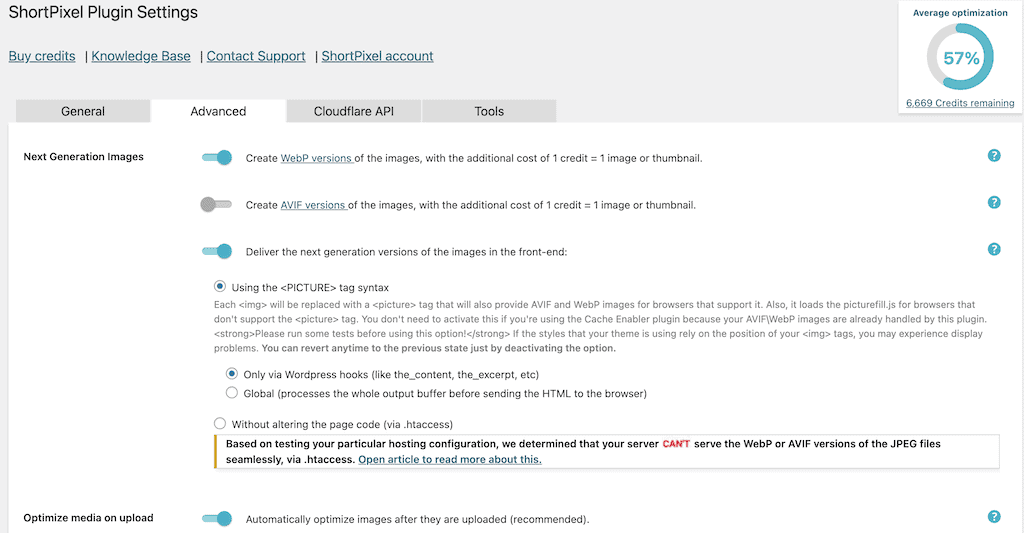
That’s all after options save your changes. You can check Best ShortPixel settings for better performance on your website.
ShortPixel has a free plan that lets you optimize 100 images per month. ShortPixel paid plans cost $3.99 per month for 7,000 images/credits or $9.99 one-time for a pack of 10,000 image credits.

Deal Alert: ShortPIxel offers a 50% more credit bonus by using our discount deal. Claim ShortPixel Discount.
After Settings up everything, you can run your web pages on Pagespeed Insights to find “Serve Images in Next-Gen Formats” warnings. If you still face any problems, let me know in the comment section.
You can also read:
- Reduce unused CSS on WordPress.
- Best WP Rocket settings for Core Web Vital.
- Fix Cloudflare Error 522.
- How to Reduce Initial Server Response Time?
Thank you. Have a nice day.